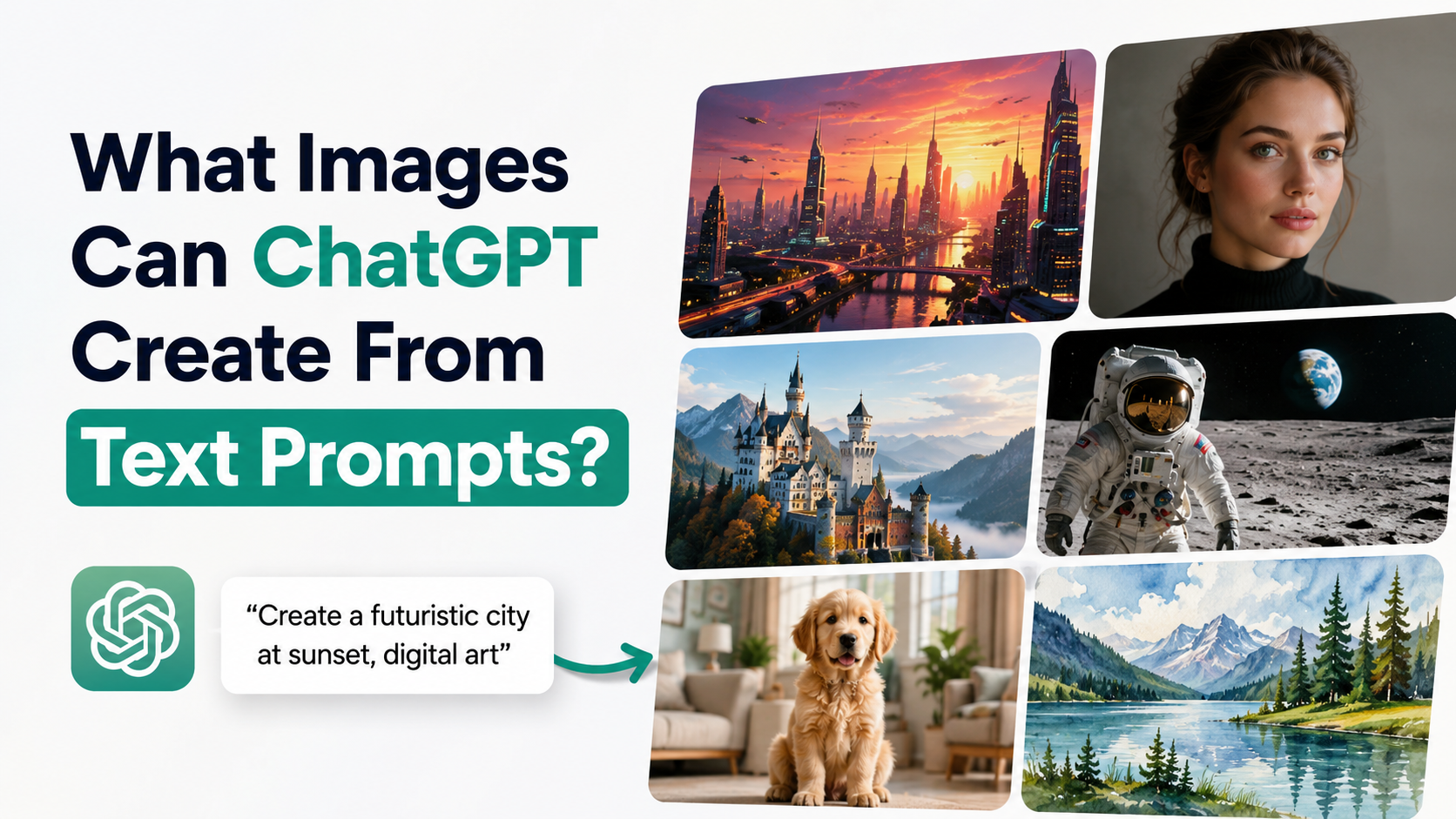
ChatGPT can create a broad range of original visuals from plain-language instructions: realistic-looking scenes, illustrations, product concepts, posters, social-media creatives, labelled diagrams, infographics, and more. The best answer to "what images can ChatGPT create" is not a fixed catalogue—it depends on how clearly you describe the subject, setting, style, composition, lighting, text, and intended use.
For Indian students, small businesses, marketers, teachers, creators, and designers, this can make visual ideation faster. You can turn an idea for a café campaign in Bengaluru, a Diwali greeting, an educational science diagram, or an ecommerce product concept into a starting visual without manually drawing every element.
Key Takeaways
- ChatGPT can create original images from text prompts and can also edit uploaded images.
- Useful image types include realistic scenes, illustrations, product mock-ups, posters, diagrams, and social-media visuals.
- Clear prompts work better than long, vague descriptions; specify subject, setting, style, format, and constraints.
- You can request text, transparent backgrounds, and different aspect ratios, although important text should be reviewed carefully.
- Refine one element at a time for more controlled results.
- Do not use generated visuals as unquestioned evidence, and obtain permission before using someone's likeness or copyrighted material.
What Can ChatGPT Image Generation Do?
ChatGPT Images lets users create a new image by describing it in a conversation or through the Images option. It can also modify a generated or uploaded image based on instructions. OpenAI states that the feature can add text and details within an image, create transparent backgrounds, and generate images in different aspect ratios. It is available on web, iOS, and Android. OpenAI's current ChatGPT Images guide provides the latest product details.
The output is best understood as a visual interpretation of your instructions. It is highly useful for concepts, communication, and creative production, but it is not a substitute for factual photography, technical drawings requiring certification, or verified documentation.
Types of Images ChatGPT Can Create
Photorealistic and editorial-style scenes
You can request realistic-looking images of people, places, food, interiors, objects, and events. For example:
Create a realistic editorial photograph of a young entrepreneur working in a sunlit co-working space in Hyderabad, with a notebook, laptop, indoor plants, and a calm professional mood.
Useful applications include website hero images, blog illustrations, mood boards, travel concepts, and campaign ideas. For a more controlled result, state the camera angle, lighting, background detail, and whether people should be generic rather than recognisable.
Digital illustrations and artistic visuals
ChatGPT can create styles such as flat vector-like illustrations, watercolour scenes, comic-inspired artwork, hand-drawn sketches, minimal editorial art, and colourful digital paintings.
A teacher could request:
Create a clean, child-friendly illustration explaining the water cycle for Class 6 students in India. Include clouds, evaporation, condensation, rainfall, and clear short labels.
Avoid asking for an exact copy of a living artist's signature style. A better prompt describes visual qualities instead: "soft watercolour texture, warm palette, detailed botanical elements," or "bold geometric shapes with a modern editorial feel."
Marketing and social-media creatives
Businesses can use prompts to explore promotional visuals for Instagram, WhatsApp, websites, presentations, or advertisements. Examples include festive campaign concepts, sale banners, restaurant visuals, and product-launch imagery.
| Use case | Example prompt direction |
|---|---|
| Festival campaign | "Warm Diwali-themed social post with diyas, marigolds, elegant gold details, and empty space for a headline" |
| Local business | "Modern bakery promotional image featuring artisan sourdough on a wooden table, natural morning light, premium but approachable" |
| Ecommerce concept | "Studio product image of a reusable steel water bottle on a pale background, soft shadow, front-facing, no logo" |
| Presentation | "Minimal illustration showing a small business moving from paper records to digital payments" |
If you need words inside the visual, keep them short and explicit. State the exact wording in quotation marks, specify placement and colour, and check the final spelling before publishing.
Product concepts and mock-ups
ChatGPT can help visualise an early concept for packaging, furniture, clothing, a mobile-app screen concept, or a product photograph. This is useful before commissioning final design or photography.
For example:
Create a premium packaging concept for an Indian masala tea brand. Use a recyclable paper pouch, earthy colours, illustrated tea leaves, and an unbranded label area.
Treat such outputs as concepts, not final production files. A packaging designer should still check print dimensions, brand guidelines, trademarks, mandatory labels, and regulatory requirements.
Infographics, posters, and labelled explainers
ChatGPT can create visual explainers, timelines, posters, and labelled diagrams. OpenAI recommends being especially specific for dense layouts and text-heavy graphics, and suggests polishing such assets in a design tool when necessary. Its image-generation guidance also recommends short, precise text instructions.
Good uses include:
- A poster explaining waste segregation for an apartment community
- A labelled diagram of a solar-panel system for a school project
- An infographic concept for a company's annual sustainability update
- A visual timeline for an internal training presentation
For high-stakes material—health, finance, law, science, public safety, or government information—verify every fact and label independently before sharing.
Edited and transformed images
ChatGPT can also work with an uploaded image. You can ask it to remove an object, change a background, adjust a composition, add an element, or transform the visual style. The editor includes a selection tool for targeting an area, although OpenAI notes that selections and edits may not always be exact. OpenAI's Help Centre advises describing the target area clearly.
A practical edit request could be:
Change only the background behind the product to a soft beige studio backdrop. Keep the bottle's shape, label, lighting, and position unchanged.
How to Write a Prompt That Produces Better Images
A reliable prompt answers five questions:
- What is the main subject?
- What is happening?
- Where is it happening?
- What should it look and feel like?
- What must stay out of the image?
Use this practical template:
Create a [type of image] of [main subject] [action or pose] in [setting]. Use [style], [lighting], and [composition]. Format it for [platform or aspect ratio]. Include [important details]. Do not include [unwanted elements].
For example:
Create a vertical Instagram illustration of a college student preparing for an entrance exam at a desk in Pune. Use a clean, modern digital illustration style, warm evening lighting, and a focused mood. Include books, a timetable, and a cup of chai. Leave clear space at the top for a headline. Do not include logos or extra text.
OpenAI's guidance recommends one to three clear sentences in most cases. Specific details about purpose, subject, action, setting, style, framing, and lighting are more useful than vague praise such as "make it beautiful." OpenAI Academy
Choosing the Right Image Format for Your Goal
The visual format should match where it will be used.
| Goal | Suggested format |
|---|---|
| Instagram post | Square or vertical composition |
| Instagram Story or Reel cover | Vertical composition |
| Website banner | Wide landscape composition |
| Blog image | Landscape composition with room for headline text |
| Product listing | Clean product-focused image with minimal background |
| Presentation slide | Wide composition and uncluttered layout |
| Poster or flyer | Vertical layout with ample text space |
You can choose an aspect ratio through the available picker or include the desired format in the prompt. If you need a transparent background for a product cut-out or presentation asset, ask for it directly.
A Better Workflow: Generate, Review, Refine
The first image should be treated as a draft. Instead of rewriting the entire prompt after every result, make one controlled change at a time.
A useful sequence is:
- Generate the core image.
- Check whether the subject, composition, and mood are right.
- Ask for one targeted adjustment.
- Repeat until the direction is satisfactory.
- Download the version you want to use and complete final layout or text work in an appropriate design tool.
Examples of focused follow-up requests:
- "Keep the composition the same, but make the lighting warmer."
- "Remove the people in the background."
- "Make the illustration less playful and more corporate."
- "Keep the product unchanged; simplify the background."
- "Change the format to a vertical poster."
OpenAI recommends targeted, step-by-step revisions because they help maintain consistency while refining the image. You can also use a small number of uploaded reference images and explain how each should influence the result. OpenAI Academy
Important Limits and Responsible Use
Image generation can be impressive, but it can still make visual mistakes. Faces, hands, small text, complex scenes, cultural details, maps, data labels, and scientific illustrations may need correction. Never assume that an image proves an event happened or that every detail is accurate.
Be particularly careful with:
- Personal likenesses: Use permission when creating or editing images of real people. A reference image can improve accuracy, but consent still matters.
- Branding and logos: Request generic or original-looking visual elements unless you have the right to use a brand asset.
- Copyrighted work: Do not present AI-generated output as an authorised copy of protected artwork, photography, or character designs.
- Sensitive content: Follow applicable platform rules and OpenAI's usage policies.
- Commercial publishing: Review the final output for spelling, misleading claims, trademark concerns, and suitability for your audience.
For a campaign aimed at Indian audiences, also ensure that clothing, languages, festival elements, places, and cultural references are respectful and contextually accurate. Specify details rather than relying on broad labels.
Frequently Asked Questions
Can ChatGPT create images from only text?
Yes. You can describe the visual you want in plain language, and ChatGPT can generate an original image based on that description. The result improves when you specify the subject, setting, style, composition, and constraints.
Can ChatGPT add text to an image?
Yes, ChatGPT Images can follow instructions to add text. Keep the wording short, put it in quotation marks, and specify its font style, colour, size, and placement. Always proofread the final image before using it publicly.
Can ChatGPT create realistic photos?
It can create realistic-looking or photorealistic-style images from prompts. However, these are generated images, not records of real events. They should not be used as evidence, news photography, or factual documentation.
Can I edit my own photo in ChatGPT?
Yes. You can upload an image and describe the changes you want, or use the selection tool to target an area. Be precise about what should change and what must remain unchanged.
Is ChatGPT image generation available on mobile?
Yes. According to OpenAI, ChatGPT Images is available on web, iOS, and Android. Availability of particular features can vary by account tier and product rollout, so consult the current in-app options or OpenAI Help Centre for the latest details.
Conclusion
ChatGPT can create far more than simple AI art: it can help produce realistic scenes, illustrations, marketing concepts, product visuals, posters, diagrams, and edited images from text prompts. The strongest results come from clear, practical instructions and a willingness to refine the output in small steps.
Start with one real use case—a blog banner, product concept, classroom visual, or social-media post—and describe exactly what the image must communicate. Then review it carefully before publishing, especially when it includes text, people, brands, or factual information.